Installation
RustyPipes does not need special installation. It is a single executable and can be run as a portable application. You may put your organ sample packs wherever you like.
Configuration files, reverb files and recordings are in your config directory. Under Linux and Mac that's usually ~/.config/rusty-pipes/ and under Windows it's {FOLDERID_RoamingAppData}/
Starting on Apple OSX
Apple's OS prevents users from running unsigned programs. To bypass this mechanism you have to perform the following steps:
- Attempt to Open the App: Double-click the RustyPipes app. You will see a warning message.
- Access System Settings: Go to Apple menu > System Settings > Privacy & Security.
- Allow the App: Scroll down to find RustyPipes and click "Open Anyway." You may need to enter your password to confirm.
Getting Started
Configuration Screen
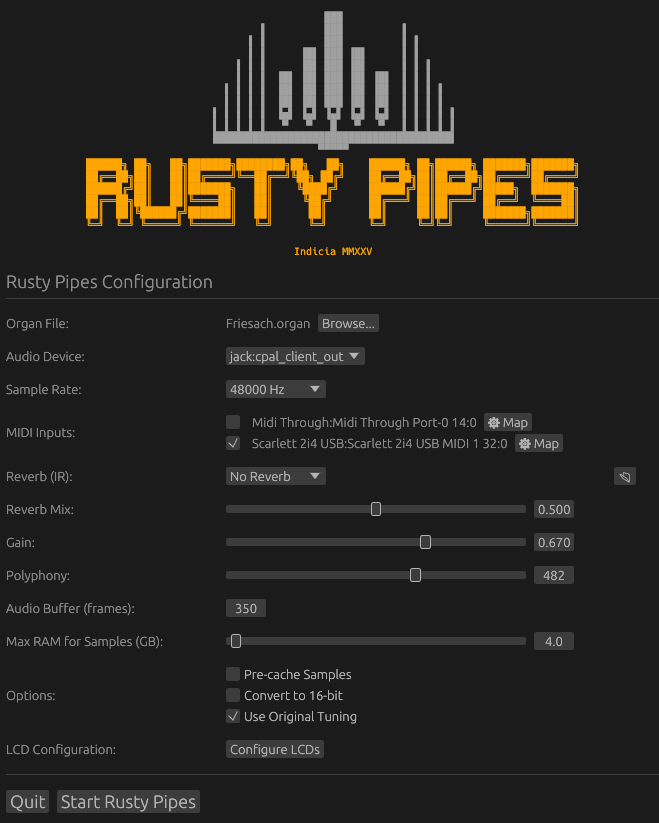
RustyPipes starts up with a configuration dialog when started without any parameters. This UI allows for the changing of all available options. All settings except for the Midi file option are saved to disk.
The required steps to get playing are to select an organ file, select one or more MIDI devices, and then press "Start Rusty Pipes" to begin playing.
Main Window
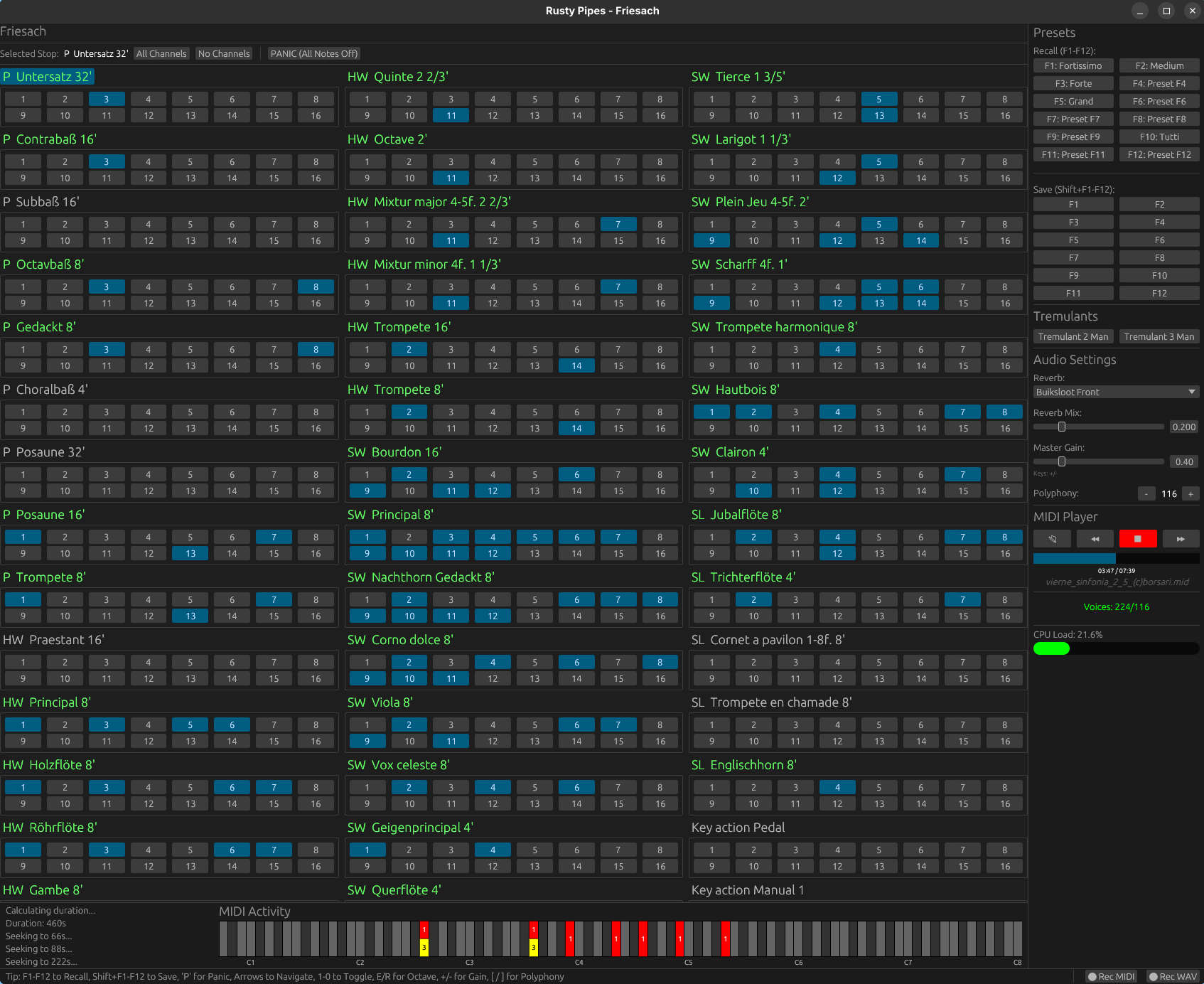
Once in the main user interface, MIDI channels can be assigned to individual stops using the number buttons, or by pressing the corresponding number key. It is possible to see which channels are active by playing something and watching the MIDI indicators and their number at the bottom of the screen.

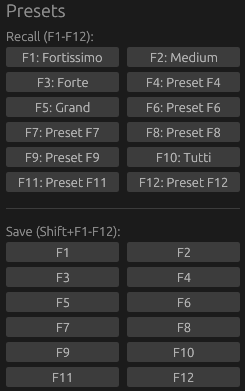
These mappings can be saved to one of 12 slots using the buttons to the right, or Shift-F1 to Shift-F12. These presets can be named and used to quickly change stops during play.
By default, RustyPipes will stream samples from disk in real time. This works great with modern SSDs. See the configuration options for alternatives for PCs with traditional hard disks.
Note: RustyPipes will create pitch-corrected samples of all pipes that have a pitch factor configured on startup. It will not overwrite the original files, but create new files with the pitch shift in the filename. This step is done automatically and only done the first time a particular organ is loaded.
Keyboard Controls
| Input | Action |
|---|---|
| Cursor keys | Select organ stop / register |
| Z,S,X,D,C... | Play notes on keyboard |
| 1,2,3...0 | Map MIDI channel to selected stop |
| Shift+F1..Shift+F10 | Save current MIDI mapping into one of 10 slots |
| F1..F10 | Load MIDI mapping of given slot |
| Shift-A | Enable all MIDI channels on selected stop |
| Shift-N | Disable all MIDI channels on selected stop |
| Shift-R | Start/Stop audio recording |
| Shift-M | Start/Stop midi recording |
| I | Set up MIDI control for selected organ stop |
| - + | Decrease/Increase gain |
| [ ] | Decrease/Increase polyphony |
| P | Panic (All notes turn off) |
| Q | Quit |
Virtual MIDI Channels vs. MIDI Devices and Channels
RustyPipes uses 16 "virtual" MIDI channels that can be mapped onto individual organ stops. However, it also supports multiple simultaneous physical MIDI devices. This is possible by mapping real MIDI channels of each device to one or more virtual channels in RustyPipes. In the main UI, only virtual channels are assigned to individual stops.
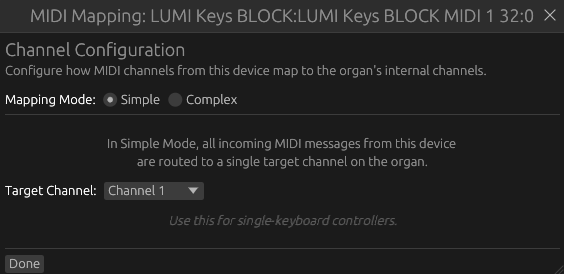
Configuration of the MIDI mapping of devices and their channels can be performed by clicking on the "Map" button next to the device on the config page.
This enables a wide range of setups. Two common scenarios are:
Multiple physical devices with their own MIDI interfaces
Several physical controllers may be connected via USB, and show up as individual MIDI inputs on the system. In such cases it's common to want all midi events of the first controller/keyboard - no matter the MIDI channel - to be sent to one virtual MIDI channel in RustyPipes. This can be done via the "Simple" mapping mode.
Multiple physical devices connected via single MIDI interface
In this configuration, a single MIDI interface is connected via USB, and several MIDI controller devices are hooked up to the interface via MIDI cables. Each physical controller is operating on a separate MIDI channel. In such setups, it is desirable to have all events of the "real" MIDI channel 1 to be mapped to the virtual MIDI channel 1 in RustyPipes, real channel 2 to virtual channel 2, and so on.

Combinations of both scenarios
Since the mapping mode and settings are configurable per MIDI input device, combinations of both of the above are possible, i.e. several organ manuals could be connected via USB as their own MIDI interfaces, while stops and pedals are connected together via MIDI cable to an additional MIDI interface adapter.
MIDI Control of Organ Stops, Tremulant and Presets
Rusty Pipes supports the activation/deactivation of organ stops, tremulants and presets via MIDI Note events or SYSEX messages.
For stops, click on a stop name in gui mode to open the configuration dialog. In text (TUI) mode, press the [i] key.
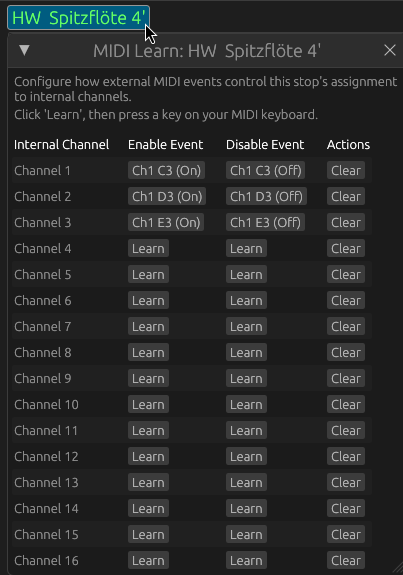
Each of the 16 virtual organ MIDI channels can be assigned a MIDI event to enable or disable the current organ Stop on that channel. It is recommended to map the controller you want to use for this to a dedicated internal channel, like channel 16 for example. Clicking the learn button will start listening for a midi event. Learned events can be forgotten via the clear button.
To define MIDI events for tremulants and presets, right click the respective button to open a MIDI event learning dialog.
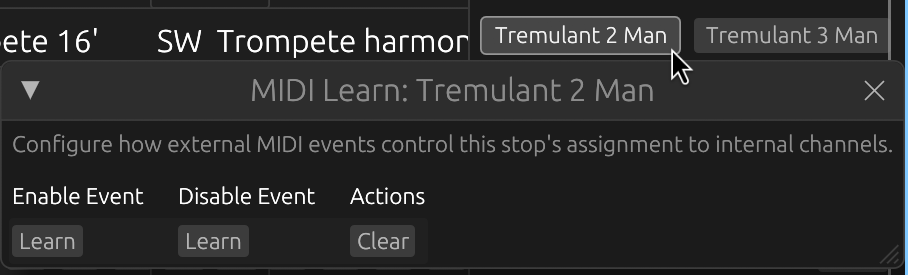
These MIDI event assignments are saved to a JSON file for each organ, and will be reloaded on the next start.
MIDI and Audio recording of performances
Live performances can be recorded as MIDI and Audio. Both recording types can be active at the same time. The recordings are saved in the user's config directory in the "recordings" subfolder, and are named with the organ name and the current timestamp.
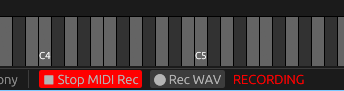
The record buttons are at the bottom of the window in GUI mode. In TUI mode use the keyboard shortcuts to start/stop recording.
Switching Organs during play
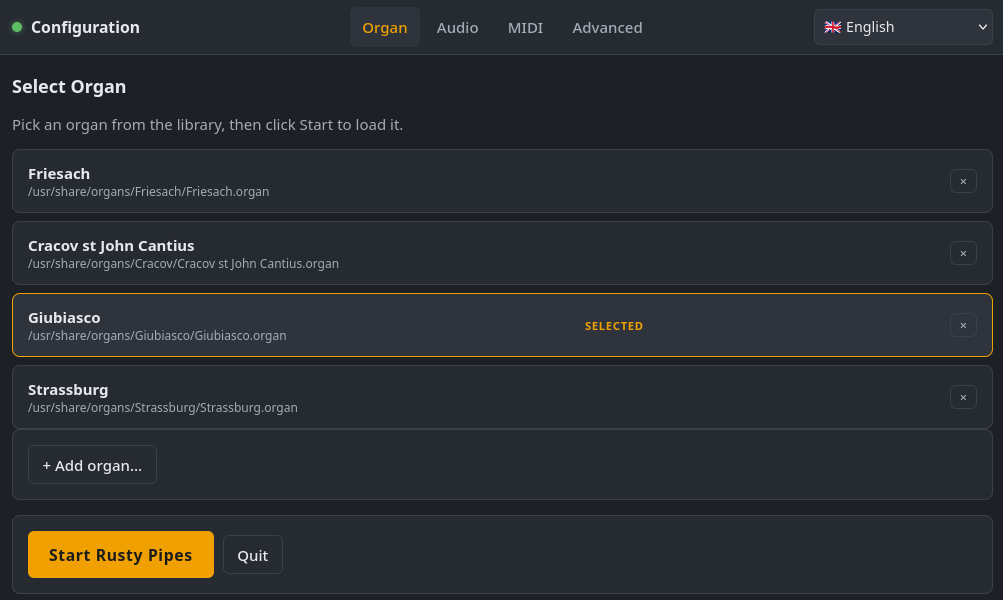
It is possible to define a list of commonly played organs and quickly switch between them either by pressing a button or via MIDI Note events or SYSEX messages. The Organ Manager can be accessed via the "Manage Organs" button in the bottom area of the main window. Press "Add Organ" and select an organ definition file, this will add the chosen organ to the list. The list of organs is stored in the user configuration directory. To remove an organ press the "X" button next to the organ entry.
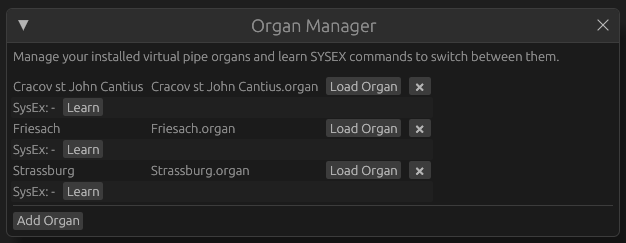
To quickly switch to another organ, press the "Load Organ" button. It is also possible to learn MIDI SYSEX commands to load organs from this list. Pressing the "Learn" button will wait for a SYSEX message, which will then cause that organ to be loaded.
Text User Interface
RustyPipes defaults to a graphical user interface, but it also supports a text-based console user interface. Both work the same, though the graphical UI has space for more controls.
You can enable text mode by starting RustyPipes with the --tui parameter.
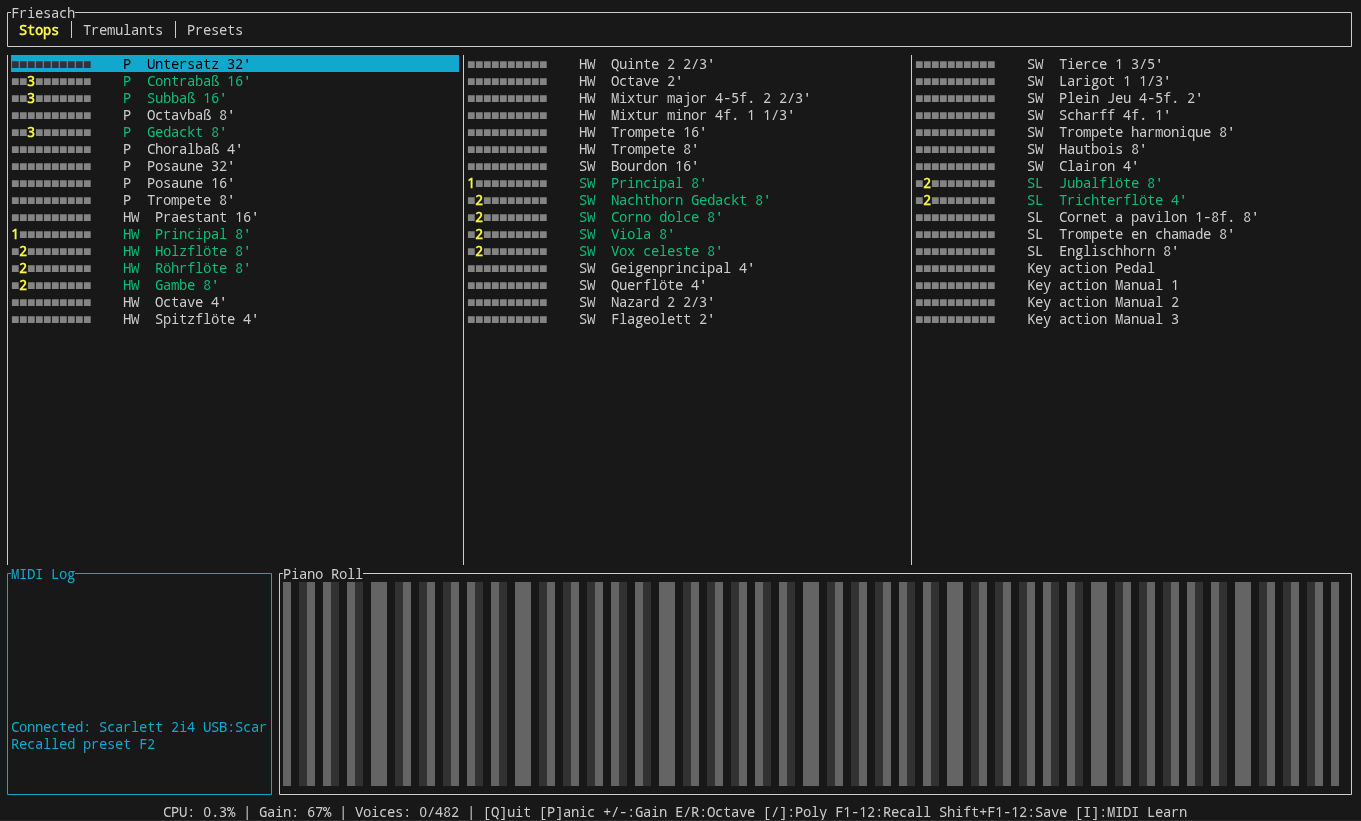
The text mode comes with its own set of keyboard controls, most of which are similar to the GUI mode:
TUI Keyboard Controls
| Input | Action |
|---|---|
| Cursor keys | Select organ stop / register |
| TAB | Switch main view between Stops, Presets and Tremulants |
| Z,S,X,D,C... | Play notes on keyboard |
| 1,2,3...0 | Map MIDI channel to selected stop |
| Shift+F1..Shift+F10 | Save current MIDI mapping into one of 10 slots |
| F1..F10 | Load MIDI mapping of given slot |
| Shift-A | Enable all MIDI channels on selected stop |
| Shift-N | Disable all MIDI channels on selected stop |
| Shift-R | Start/Stop audio recording |
| Shift-M | Start/Stop midi recording |
| I | Set up MIDI control for selected organ stop, preset or tremulant (see TAB key) |
| Shift + O | Open Organ Manager |
| - + | Decrease/Increase gain |
| [ ] | Decrease/Increase polyphony |
| P | Panic (All notes turn off) |
| Q | Quit |
Web UI
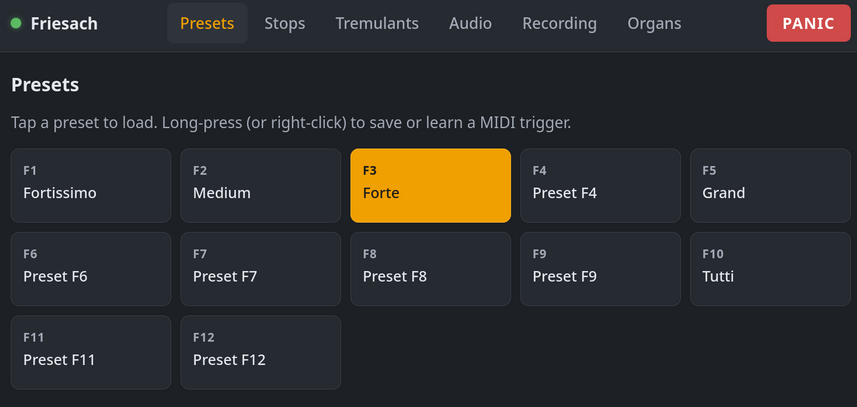
RustyPipes provides a web UI can be accessed via http://127.0.0.1:8080 (or the IP address of the computer RP is running on). This webpage allows complete configuration and control over the organ from a desktop browser, tablet or even mobile phone.