Configuration Options
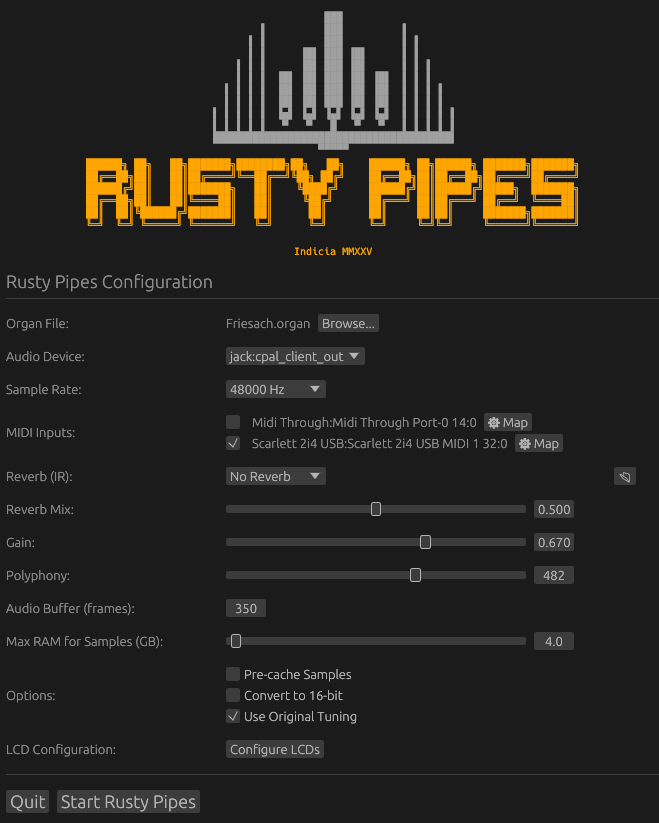
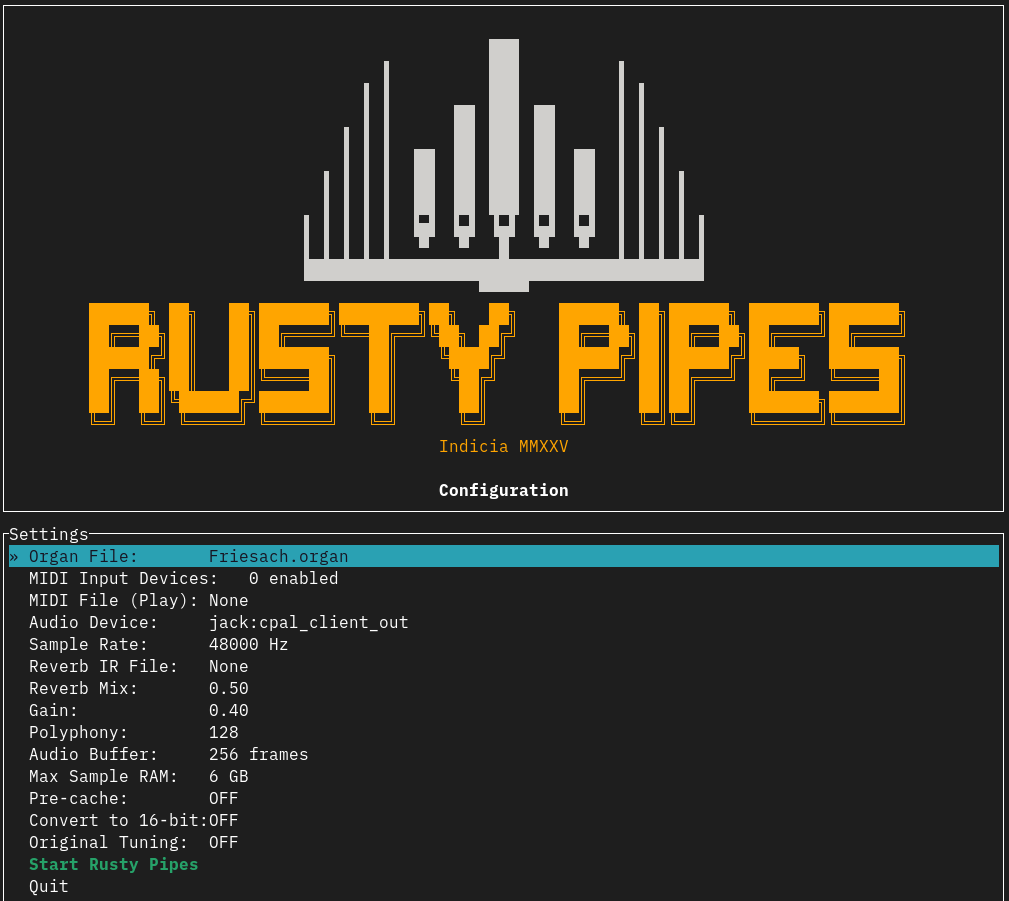
The configuration dialog is shown on startup in both text and graphical mode, the settings are the same for both.
Organ file
This setting needs to point to a GrandOrgue .organ or Hauptwerk .Organ_Hauptwerk_xml file that is part of an organ sample set. The configuration dialog allows the user to browse for the organ they want to load.
Note: Hauptwerk support is experimental and known to still have pitch issues with some sample sets. Some Hauptwerk organs are mixed completely dry on purpose and may require the use of the convolutional reverb setting to be used.
Audio device
Select the audio output device. Note that if your device has more than 2 channels (professional multichannel audio interfaces, etc) then only the first 2 channels will be used for the left and right channel respectively.
MIDI file
This option allows for the selection of a MIDI file to play back. This can be done on startup as well as while playing.
Command line example: rusty-pipes /path/to/name.organ /path/to/file.mid
MIDI device
Select one or more MIDI input devices that shall be used to play. For each device you can choose between "simple" and "complex" mapping. When not selecting a MIDI file, it is assumed that some form of MIDI input device shall be used.
Simple MIDI mapping
This maps all of the input device's midi channels to a single virtual MIDI channel within RustyPipes, which can then be mapped to one or more organ stops.
Complex MIDI mapping
This allows the configuration of each of the MIDI devices' channels separately, mapping them to one or more virtual MIDI channels within RustyPipes.
Convolution Reverb
This option lets you select a file containing the impulse response of the desired room/church. RustyPipes will look in the user's config directory, subdirectory "reverb", for .wav files.
Reverb mix
This parameter defines how much reverb vs the original sample is used. 0.0 = no reverb, 1.0 = oops it's all reverb.
Gain
The overall output gain (0.0 - 1.0). 0.4 is a relatively safe value.
Polyphony
The maximum number of pipes playing. When you release a key, the release of any pipe exceeding that limit will be shortened.
Audio Buffer
The number of frames used in the internal audio buffer. Higher numbers work on slower computers, but introduce more latency. Recommended to use power of 2 values (256, 512) when using reverb.
Max RAM for Samples (GB)
RustyPipes loads the beginning of all samples in order to be able to start playback immediately, and to give the disk time to stream the rest. This setting sets how much RAM shall be used for this feature. If your disk is slow, raise this value.
Precaching
Loads all samples completely into RAM on startup. This disables the "Max RAM for Samples" setting, as it will use all available RAM all the time.
Convert to 16 bit
Creates 16-bit versions of all samples to save RAM (may reduce quality).
Original Tuning
Ignores sample set tuning information if the pitch shift is not greater than +/- 20 cents, preserving the character of the organ as it was recorded.
LCD Configuration
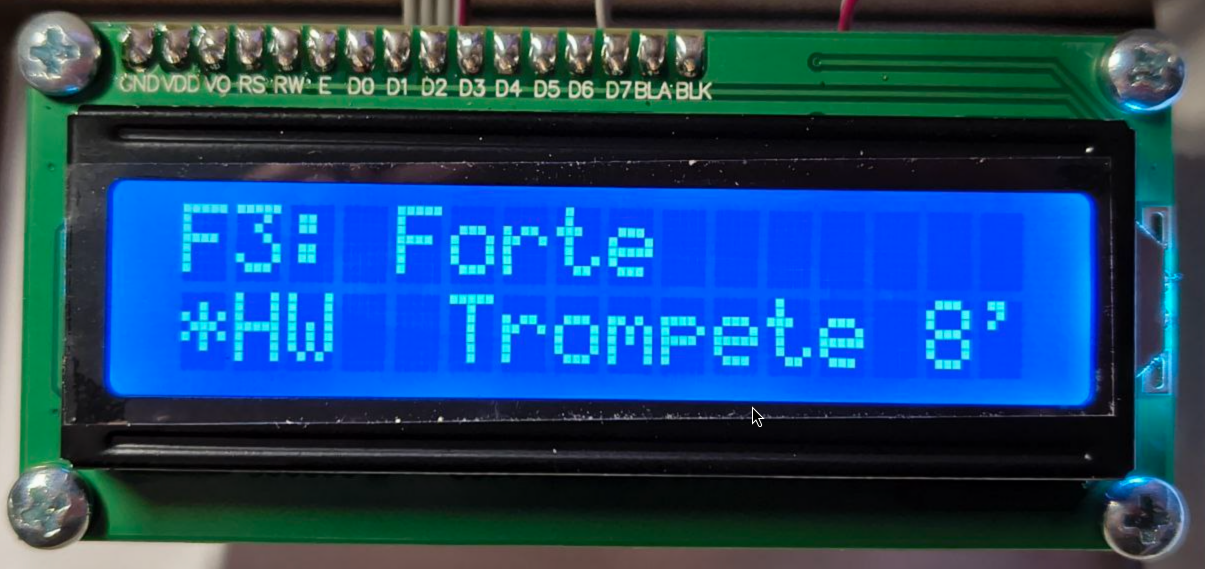
This enables the display of various bits of information on Hauptwerk-compatible 2x16 LCD character screens via SYSEX.
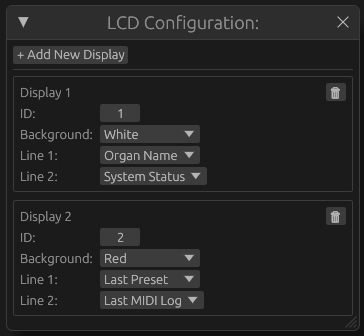
You can configure to display one or more of the following information:
- Organ Name
- System Status
- Last Preset
- Last Stop Change
- MIDI Log
- Gain
- Reverb Mix
- MIDI Player Status